
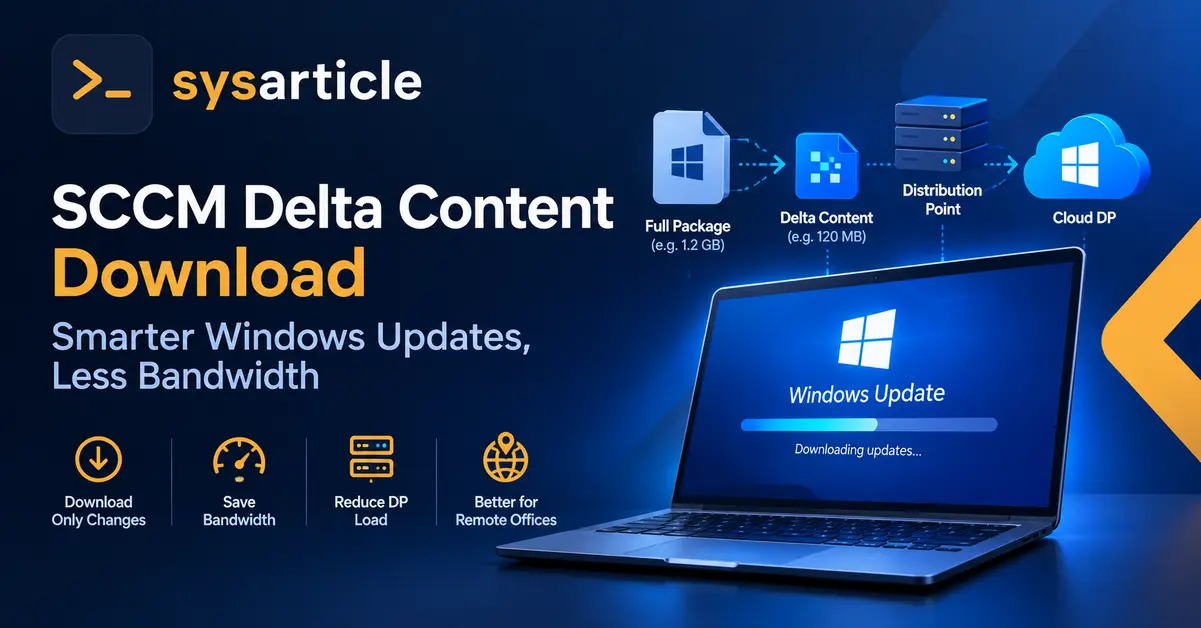
Windows quality updates keep growing, and shipping the full package to every managed endpoint wastes bandwidth that branch offices and VPN-connected laptops don’t have to spare. Delta content download is a client setting built for exactly that problem, but its behavior depends on the client OS build and how you’re serving update content, and that part gets misunderstood more often than the setting itself.
What Delta Content Actually Does
Delta content lets the Windows Update Agent (WUA) on the device figure out which parts of an update package have actually changed and pull only those bytes, instead of downloading the whole file again. It’s a binary diff mechanism, not a compression trick. The client already has a previous version of the payload on disk and only fetches the difference.
This is a separate concept from Express installation files, even though the two are related historically. Express installation was the original mechanism for downloading only the differences for certain update types. The delta content client setting effectively supersedes it: once you enable delta content, delta download applies to all Windows Update installation files the client processes, not just the ones that were eligible for Express before.
Where to Enable It
Open the Configuration Manager console and go to Administration \ Overview \ Client Settings. Pick the client settings object you want to change: this can be the Default Client Settings, which applies hierarchy-wide, or a custom client settings object you’ve deployed to a specific collection. Open its properties, go to the Software Updates tab, and scroll down to Allow Clients to Download Delta Content When Available. Set it to Yes and click OK.

If you don’t want this applied hierarchy-wide, create a custom client settings object and deploy it to a collection rather than touching the default settings. That’s the safer path if you only want to pilot delta content on a subset of devices, for example a collection built from a specific OU, which is a common way to scope any custom client setting before rolling it out further.
What Changes on the Client
This is where most write-ups stop short, and it’s the part worth getting right before you flip the switch.
- On Windows builds that support delta download (Windows 10 version 1709 / build 10.0.16299 and later), the delta download endpoint is active on the client regardless of this setting. The client setting doesn’t turn the endpoint on or off. It controls which update types are allowed to use it.
- With the setting disabled, only UUP-based updates use delta download. Every other update, Express or not, falls back to a full file download.
- With the setting enabled, essentially all updates go through the delta download code path, with one exception: if the only distribution point available to the client is a cloud DP, delta download doesn’t apply and the client falls back to a full download from that cloud DP.
Delta content uses a local HTTP listener on the client, on port 8005 by default. You don’t need to open this port in the client firewall. It’s local-only, used for the client to receive delta content requests, and Configuration Manager configures it automatically. If you’ve previously worked with Express installation files, note that this same port setting is what used to be labeled as the port for Express installation file downloads; it now serves delta content instead.
Boundary Group Fallback for Delta Content
Since ConfigMgr 2010, there’s a companion setting: If content is unavailable from distribution points in the current boundary group, immediately fallback to a neighbor or the site default. This is specific to delta content. Normal software update deployments already have fallback behavior governed by boundary group relationships, but delta downloads carry a five-minute timeout per download job, which is short enough that waiting out the standard fallback timer can cause the update to fail before it ever reaches a working distribution point.
Set this to Yes if you want delta downloads to skip straight to a neighbor or the site default boundary group the moment delta content isn’t available locally, instead of waiting for the fallback time configured on the boundary group relationship. Leave it at the default (No) if you’d rather have the client respect the same fallback timing it uses for everything else, at the cost of an occasional delta download timing out on the way.
The CMG Caveat
If your distribution point for a boundary group is a cloud management gateway used for content storage, enabling delta content download breaks delivery of third-party update content to clients using that CMG. This isn’t a bug you’ll find documented with a root cause. Microsoft states the limitation without explaining the underlying mechanism, but the practical effect is consistent: third-party updates simply don’t download to those clients once delta content is turned on.
This same caveat shows up twice in Microsoft’s own client settings documentation, once under the Software Updates section and again under Delivery Optimization, which tells you it’s not an isolated software-updates quirk but something tied to how CMG-served content interacts with delta and peer-to-peer download paths in general. If your organization is running a CMG for content storage and also using a third-party patching solution (Patch My PC, for example), test this combination in a pilot collection before enabling delta content broadly. Don’t assume it only affects Windows updates.
Practical Recommendation
For an environment without a content-serving CMG, enabling delta content on the default client settings is close to a free win: smaller downloads, less strain on distribution points, and better experience for remote offices on constrained links. For an environment that does route third-party update content through a CMG, scope this to a custom client settings object and a test collection first, confirm third-party content still reaches those clients, and only then consider rolling it out to the default settings.
Frequently Asked Questions
Does enabling delta content replace the “Enable installation of Express installation files” setting?
Yes. The delta content client setting supersedes the older Express installation files setting. Once delta content is enabled, delta download covers all Windows Update installation files the client processes, not only the ones that qualified for Express before.
Do I need to open port 8005 on client firewalls?
No. Port 8005 is the local port the client uses to receive delta content requests on itself. It’s not a listener you need to expose across the network, and Configuration Manager configures it without manual firewall changes.
If I leave this setting disabled, does that mean Windows 10/11 clients never use delta downloads?
No. On OS versions that support delta download (1709 and later), UUP-based updates still use delta download regardless of the client setting. Disabling the setting only stops non-UUP updates from using the delta path; those fall back to full downloads.
Will this affect third-party update content served through a CMG?
Yes, if the CMG is used for content storage. Enabling delta content download stops third-party update content from downloading to clients using that CMG. Test this in a pilot collection before a broad rollout if you rely on a CMG for content and use a third-party update catalog.
Can I enable this for only some devices instead of the whole hierarchy?
Yes. Create a custom client settings object with delta content enabled, and deploy it to a collection instead of changing the Default Client Settings. This is the standard way to pilot any client setting change before it goes hierarchy-wide.
References
- Microsoft: Client settings – Configuration Manager (see “Allow clients to download delta content when available” and “Delivery Optimization” sections) https://learn.microsoft.com/en-us/intune/configmgr/core/clients/deploy/about-client-settings


