An Entra Connect export that’s been running clean for weeks suddenly shows a batch of failures. Synchronization Service Manager reports the job as completed-export-errors, and clicking into it lists dozens of objects, each tagged with the same Entra Connect permission-issue status: 76 of them in one real case, spanning ordinary user accounts with no obvious pattern connecting them at a glance.
That status corresponds to error code 8344, “Insufficient access rights to perform the operation.” It means the on-premises AD DS connector account, the service account Entra Connect uses to write changes back into Active Directory, doesn’t currently have the permissions it needs on the objects it’s trying to update.

Synchronization Service Manager showing an Entra Connect permission issue with 76 export errors” Caption: The same server, a different run: status completed-export-errors, 76 objects flagged permission-issue.

Synchronization Service Manager showing healthy Entra Connect export and delta sync operations, all status success” Caption: A normal day: Export, Delta Import, and Delta Synchronization all reporting success.
What Changed to Cause This
An Entra Connect permission issue like this rarely appears out of nowhere on objects that were syncing fine before, and it’s almost never caused by a change on the Microsoft 365 side. The usual causes, in roughly the order worth checking:
- Permission inheritance got disabled on the affected OU, intentionally or by an unrelated change, and the connector account’s rights stopped flowing down to the objects inside it.
- A newer sync feature got turned on, such as password hash sync, SSPR writeback, or group writeback, and the connector account was never granted the additional attribute-level permissions that feature needs.
- The AD DS connector account was set up through Entra Connect’s custom installation path rather than the express path, which doesn’t automatically configure AD permissions the way the default setup does.
Checking for broken inheritance first is worth doing before writing any permission-granting script. Open one of the affected objects’ Security tab, go to Advanced, and confirm inheritance is actually enabled. If it isn’t, re-enabling it alone resolves a surprising number of these cases without touching a single ACL by hand.
Find the Actual Attribute Before You Touch Permissions
If inheritance looks fine, the next step is identifying which attribute the connector account can’t write, not just which objects are failing. In Synchronization Service Manager, open the Operations tab, select the Export row for the affected connector, then double-click one of the permission-issue entries. The Connector Space Object Properties dialog’s Pending Export tab lists the attribute that triggered the failure and what it was trying to write.
This matters because the fix is different depending on the attribute. A failure on ms-DS-ConsistencyGuid needs different permissions than one on unicodePwd from password writeback, and granting broad rights without knowing which one you’re dealing with is how you end up over-provisioning the connector account for problems it doesn’t actually have.
The Properly Scoped Fix
Microsoft ships the ADSyncConfig PowerShell module specifically for granting the AD DS connector account exactly the rights each sync feature needs, scoped to the object or OU you specify:
Set-ADSyncBasicReadPermissions -ADConnectorAccountName "ADSync" -ADConnectorAccountDomain "contoso.com" -ADobjectDN "OU=Users,DC=contoso,DC=com"Code language: JavaScript (javascript)Related cmdlets in the same module cover other feature-specific permission sets: Set-ADSyncPasswordHashSyncPermissions, Set-ADSyncPasswordWritebackPermissions, Set-ADSyncMsDsConsistencyGuidPermissions, and Set-ADSyncExchangeHybridPermissions. Each one grants only what that specific feature requires, which is the whole advantage over a hand-built access rule. The same result is also reachable through the Entra Connect wizard itself: open it, select Configure, and its troubleshooting console has numbered menu options for exactly this, including a dedicated option for setting password hash sync permissions.
For a broader look at running the wizard itself, including what changed with the license and site-count updates in late 2025, see upgrading Microsoft Entra Connect.
If You Write a Manual ACL Script Instead
Granting a custom rule with Get-Acl, New-Object ActiveDirectoryAccessRule, and Set-Acl against the AD: PSDrive works, and it’s a common approach when the scoped cmdlets above don’t quite cover the situation:
$syncAccount = "contoso\svc-azuresync"
$ou = "OU=Users,DC=contoso,DC=com"

$acl = Get-Acl "AD:\$ou"

$sid = (New-Object System.Security.Principal.NTAccount($syncAccount)).Translate(
    [System.Security.Principal.SecurityIdentifier])

$rule = New-Object System.DirectoryServices.ActiveDirectoryAccessRule(
    $sid,
    [System.DirectoryServices.ActiveDirectoryRights]::GenericAll,
    [System.Security.AccessControl.AccessControlType]::Allow,
    [System.DirectoryServices.ActiveDirectorySecurityInheritance]::Descendants
)

$acl.AddAccessRule($rule)
Set-Acl "AD:\$ou" $aclCode language: PHP (php)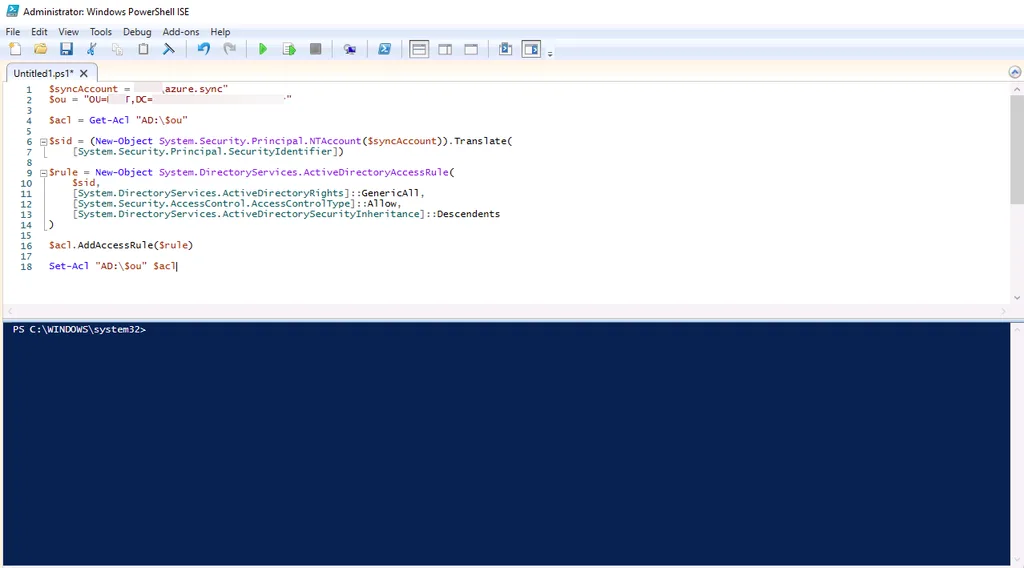
PowerShell ISE script granting GenericAll permission to the Entra Connect sync account on an OU” Caption: The script as written in PowerShell ISE, ready to run against the target OU.
Worth being direct about this: GenericAll grants full control over every object under that OU, far more than an export operation needs. It’s the kind of grant that works immediately and then sits there as a standing risk an access review eventually has to catch. If the ADSyncConfig cmdlets above cover the attribute you identified, they’re the better call. Reach for a manual rule like this only when a genuinely custom permission need falls outside what those cmdlets grant, and scope the ActiveDirectoryRights value down to what’s actually required rather than defaulting to GenericAll out of convenience.
Cannot Find Drive: The Error a Manual Script Runs Into
Running the script above in a fresh PowerShell window often fails before it gets anywhere near granting permissions:
Get-Acl : Cannot find drive. A drive with the name 'AD' does not exist.
You cannot call a method on a null-valued expression.
Set-Acl : Cannot bind argument to parameter 'AclObject' because it is null.Code language: JavaScript (javascript)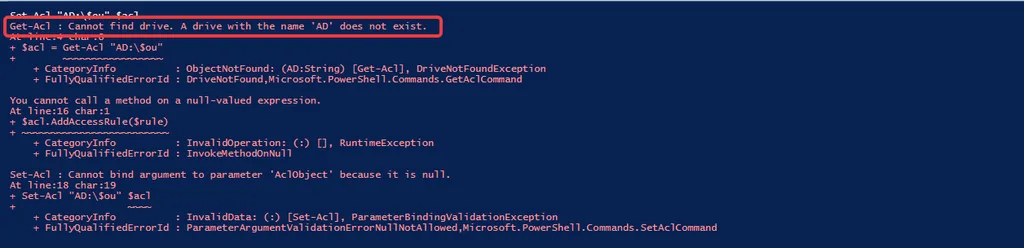
PowerShell error: Cannot find drive, a drive with the name AD does not exist” Caption: The actual error output, three failures cascading from one missing PSDrive.
Three errors, one root cause. The AD: PSDrive isn’t a permanent feature of Windows; it’s created by the Active Directory PowerShell module the moment that module gets imported into the current session, and it only exists in that specific session. Confirm it’s missing with:
Get-PSDrive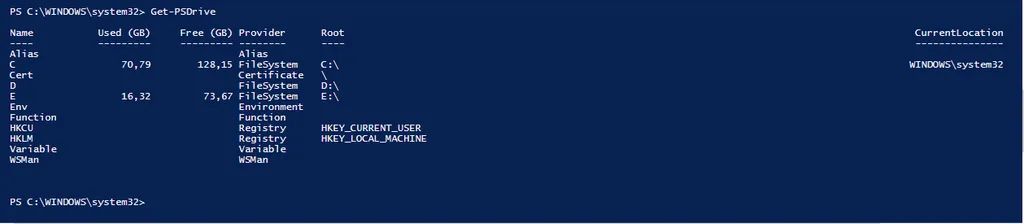
Get-PSDrive output with no AD drive listed before importing the Active Directory module” Caption: No AD drive in the list. This is the state that produces the Cannot find drive error.
If AD isn’t in the list, importing the module creates it:
Import-Module ActiveDirectory
Get-PSDrive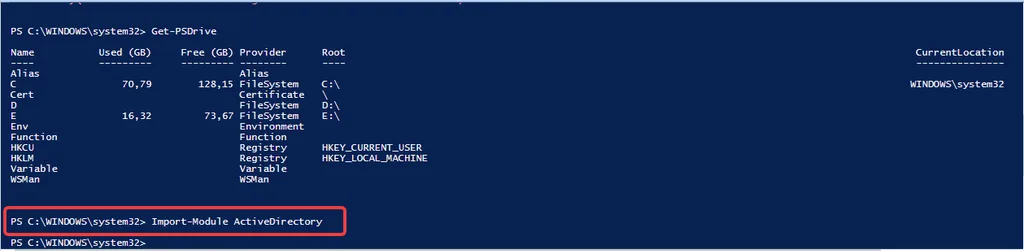
Running Import-Module ActiveDirectory in PowerShell” Caption: Importing the module in the same session the script will run in.
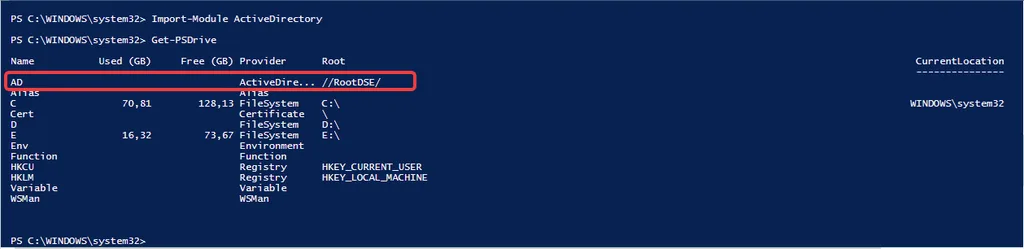
Get-PSDrive output showing the AD drive after importing the Active Directory module” Caption: AD now appears in the drive list, rooted at //RootDSE/. Get-Acl “AD:…” works from here.
AD now shows up with a root of //RootDSE/, and Get-Acl "AD:\$ou" works from that point on, in that session. Open a new console, a new ISE tab, or a scheduled task running in its own process, and the drive is gone again until the module is imported there too. If Import-Module ActiveDirectory itself fails because the module isn’t installed at all, that’s a separate problem: the RSAT Active Directory tools aren’t present on that machine, and installing RSAT on Windows 11 covers getting the module itself in place first.
The three cascading errors are worth reading in order rather than reacting to the last one. Get-Acl failing first is what actually matters; $acl being null afterward, and Set-Acl rejecting a null object last, are just consequences of that first failure propagating through the rest of the script. Fixing the last error message without noticing the first one just moves the same failure one line down.
Retest and Confirm
Once the Entra Connect permission issue is addressed on the identified attribute or OU, don’t wait for the next scheduled cycle to check it worked. Trigger a full sync manually and watch it complete:
Start-ADSyncSyncCycle -PolicyType DeltaBack in Synchronization Service Manager, confirm the Export row shows a clean success status rather than completed-export-errors, and that the previously failing objects no longer appear in the error list. A partial fix, one where the object count in the error list drops but doesn’t reach zero, usually means more than one attribute or OU was affected and the same diagnosis process needs repeating for what’s left.
References
Microsoft: Troubleshoot Permission-Issue Error in Synchronization Service Manager https://learn.microsoft.com/en-us/troubleshoot/entra/entra-id/user-prov-sync/troubleshoot-permission-issue-sync-service-manager
Microsoft: Microsoft Entra Connect ADSyncConfig PowerShell Reference https://learn.microsoft.com/en-us/entra/identity/hybrid/connect/reference-connect-adsyncconfig
Microsoft: Troubleshoot Password Writeback Access Rights and Permissions https://learn.microsoft.com/en-us/troubleshoot/entra/entra-id/user-prov-sync/password-writeback-access-rights-permissions