

Task Manager tells you a process is using CPU and memory. It doesn’t tell you which DLLs that process has loaded, which files or registry keys it currently has open, or why a drive won’t eject because something, somewhere, still has a handle on it. Process Explorer, one of the original Sysinternals tools and still maintained by Microsoft, answers all three, and it’s a free download that runs without installation.
What Process Explorer Actually Shows
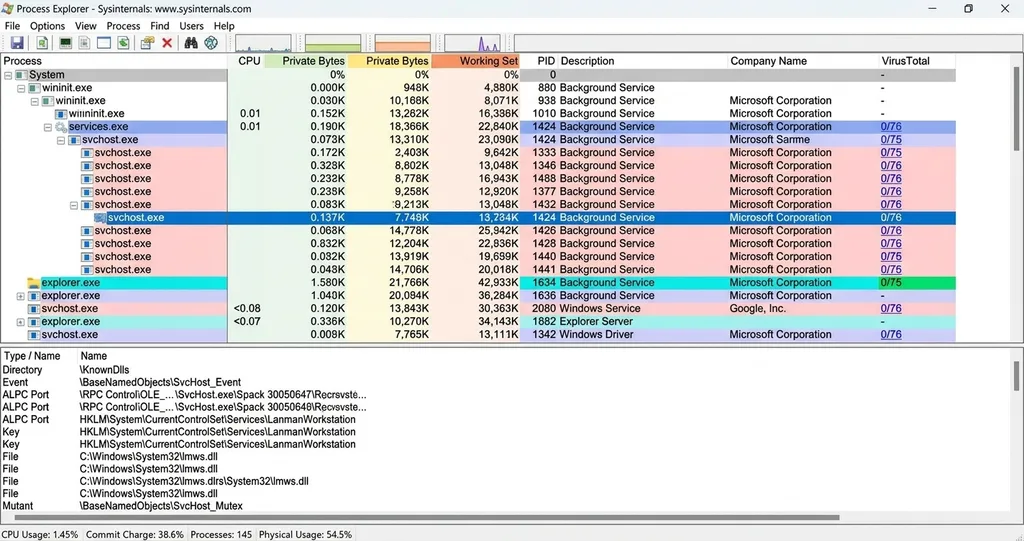
The window is split into two panes. The top pane is always the active process list, shown as a tree by parent-child relationship, with the owning account for each one. The bottom pane switches between two modes: handle mode, which lists every file, registry key, and other object the selected process currently has open, and DLL mode, which lists every DLL and memory-mapped file it has loaded. A built-in search works in the other direction too, searching across every running process for whichever handle or DLL name you give it.
That’s the real difference from Task Manager. Task Manager answers “what’s running and how much is it using.” Process Explorer answers “what is this process actually doing, and what else on the system is touching the same file, key, or DLL.”
Installing and Running It
No installer, no setup wizard. Download the ZIP from Microsoft’s Sysinternals page, extract it, and run procexp.exe directly, or run it straight from the network with https://live.sysinternals.com/procexp.exe if you just need it once on a machine you don’t want to leave files on. The current version requires Windows 11 or Windows Server 2019 and later on the client and server side respectively; older OS versions need an earlier release of the tool.
The first launch asks you to accept the Sysinternals license. Accept it once per machine (or per user profile, since the acceptance is stored in the registry) and it won’t ask again.
Reading the Process Tree and Color Coding
New processes flash green and exiting processes flash red for a brief period (one second by default, adjustable under Options > Configure Highlighting), which makes it obvious at a glance when something just launched or just quit. Beyond that flash, rows get a persistent color by category: service processes get one color, your own processes get another, and anything flagged as a packed image, a strong signal for malware trying to evade static analysis, gets flagged distinctly. The exact color scheme is configurable in the same Options menu, so what you see depends on how it’s been set up on a given machine.
The tray icon, if Process Explorer is minimized there, doubles as a small CPU graph: green under 70% utilization, yellow between 70 and 90%, red above that, so a glance at the taskbar tells you whether something’s actively hammering the CPU without opening the window at all.
Finding Which Process Has a File or Drive Locked
This is the use case that saves the most time in practice. When Windows refuses to eject a drive, delete a folder, or let you overwrite a file because it’s “in use by another program” without naming that program, Process Explorer’s handle search answers the question directly: Find > Find Handle or DLL (Ctrl+F), type the drive letter, folder, or file name, and it lists every process with an open handle matching that text. From there you can close the specific handle without killing the whole process, which matters when the process holding the lock is something you’d rather not just terminate outright.
If a drive itself won’t unmount cleanly and the handle search comes up empty, that’s usually a sign the problem is at the file-system or hardware level rather than a process holding something open, and what to check when a drive won’t eject or unmount cleanly is a different troubleshooting path entirely.
Checking File Signatures and VirusTotal Results
Two separate checks, both under Options, and both worth understanding before turning them on. Verify Image Signatures checks a process’s executable and loaded DLLs against their Authenticode signature when you open its Properties dialog, showing “(Verified)” next to the company name if it’s signed by a trusted root authority, or “(Unable to Verify)” if it’s unsigned or signed by something that isn’t trusted. It’s a local check against the file on disk, nothing leaves the machine.
VirusTotal integration is a different thing entirely, and it does leave the machine. Turn it on under Options > VirusTotal.com > Check VirusTotal, or right-click a single process and choose the same option, and Process Explorer submits that file’s hash to VirusTotal and shows how many of VirusTotal’s scanning engines flag it, as a clickable link count next to the process. By default this is a hash lookup only. A separate setting in the same menu additionally uploads files VirusTotal hasn’t seen before for full scanning, and that’s the setting to think twice about on anything that might contain sensitive data: an uploaded unknown executable becomes visible to other VirusTotal users who encounter the same file later.
Replacing Task Manager Entirely
Options > Replace Task Manager swaps what opens when something invokes Task Manager, Ctrl+Shift+Esc included, with Process Explorer instead. It’s a machine-wide setting, not per-user, so it changes what every account on that computer gets when they reach for the familiar shortcut. Once it’s set, the same menu entry reads “Restore Task Manager,” and selecting it undoes the swap cleanly.
Worth deciding deliberately on a shared or managed machine rather than flipping it on a personal workstation and forgetting it’s there; someone expecting the stock Task Manager interface on a machine they don’t own can be caught off guard by a tool with considerably more going on in it.
Command-Line Options
A handful of switches are worth knowing if Process Explorer gets launched from a script or a shortcut rather than by hand:
procexp.exe /tStarts minimized to the system tray, useful for having it running quietly in the background for the CPU-color tray icon alone.
procexp.exe /ePrompts for UAC elevation and restarts with administrative rights if it wasn’t already launched elevated, which matters since several features, inspecting another user’s process handles among them, need elevation to work at all.
procexp.exe /s:1234Selects the process with PID 1234 immediately on startup, handy when a script already knows which process it wants investigated.
procexp.exe /p:hSets Process Explorer’s own priority: r for realtime, h for high, n for normal, l for low.
Does Process Explorer need to be installed?
No. It’s a single executable, procexp.exe, that runs directly after extracting the downloaded ZIP, with no installer or setup process.
Is the VirusTotal check in Process Explorer safe to leave on by default?
The default hash-lookup check doesn’t upload files, only compares a hash against VirusTotal’s existing database. The separate option to upload unknown files is the one to think about before enabling, since an uploaded file becomes visible to other VirusTotal users.
What’s the fastest way to find out why Windows won’t let me delete or eject something?
Ctrl+F in Process Explorer opens Find Handle or DLL. Type the file, folder, or drive letter, and it lists every process with a matching handle open, so you can close that specific handle or decide whether to end the process holding it.
Does replacing Task Manager with Process Explorer affect every user on the machine?
Yes. Options > Replace Task Manager is a machine-wide setting, not scoped to one account, so it changes what Ctrl+Shift+Esc opens for everyone who signs in to that computer.
What does the green and red flashing on process rows mean?
A process row flashes green briefly when it starts and red briefly when it exits. The duration is configurable under Options > Configure Highlighting, and it’s separate from the persistent color coding used for categories like services or packed images.
Related Articles
Anchor Text: what to check when a drive won’t eject or unmount cleanly (linked inline above) Target: https://sysarticle.com/corrupted-external-drive-recovery/
References
Microsoft: Process Explorer (Sysinternals) https://learn.microsoft.com/en-us/sysinternals/downloads/process-explorer
Microsoft: Sysinternals Live https://live.sysinternals.com/
Petri: 5 Reasons Why You Should Replace Task Manager with Sysinternals Process Explorer https://petri.com/5-reasons-replace-task-manager-with-sysinternals-process-explorer/


